
Spreadsheets for Non-Accountants: Getting Comfortable With Rows, Formulas, and Data
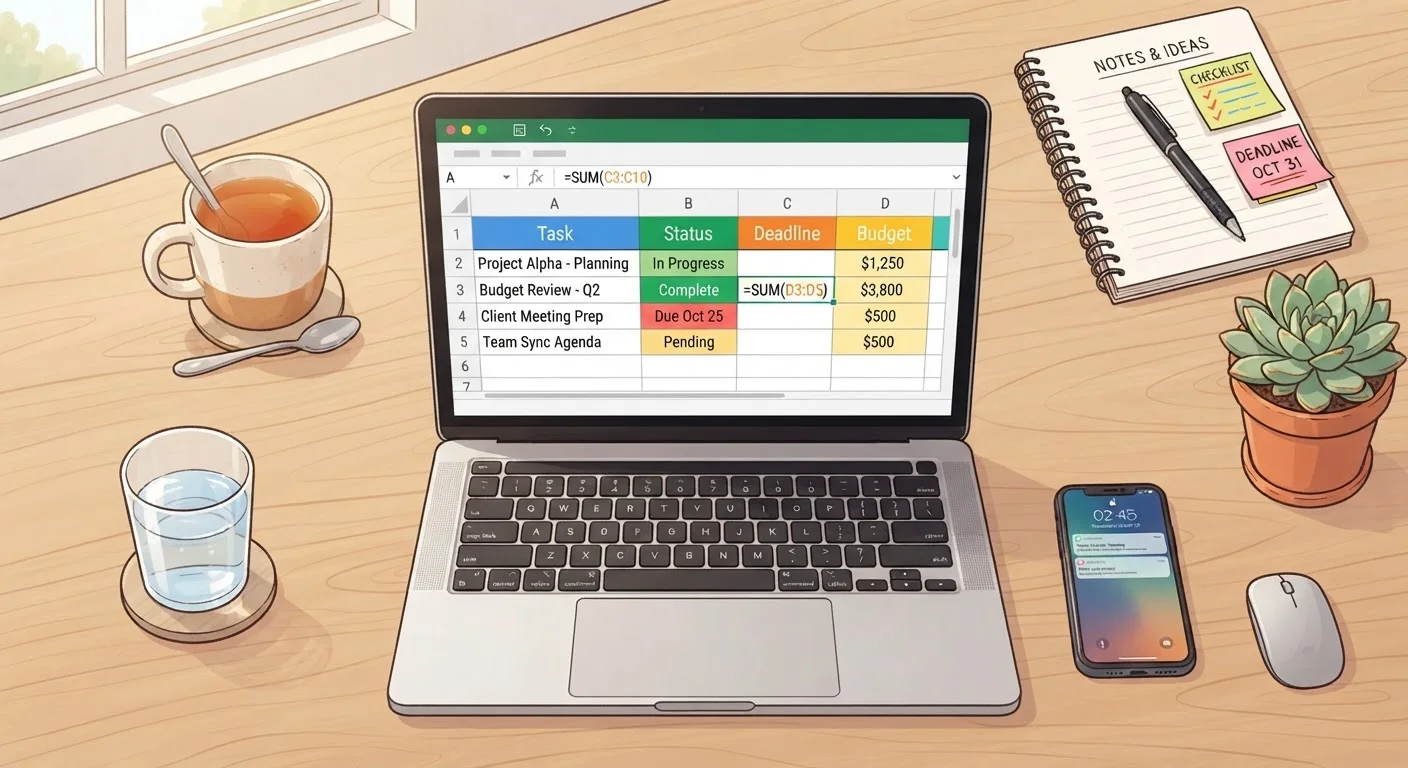
Photo credit: AdvisorHQ.net | Informative Website
In this article
You do not need an accounting background to use spreadsheets confidently. This beginner-friendly guide covers the core ideas from scratch.
Key Takeaways
- A spreadsheet is simply a grid where each box can hold text, a number, or a formula.
- Cell addresses like B3 tell you exactly where data lives - column letter first, then row number.
- Formulas always start with an equals sign (=) and can do the math for you automatically.
- Keeping your data in consistent columns makes sorting and calculating far easier.
- Spreadsheets are useful for budgets, lists, schedules, and much more - not just accounting.
What a Spreadsheet Actually Is
Think of a spreadsheet as a very smart piece of graph paper. It is a grid made of individual boxes arranged in rows and columns, and each box - called a cell - can hold a word, a number, or a formula that calculates something for you automatically.
The two most common spreadsheet programs are Microsoft Excel and Google Sheets. Excel is installed software, while Google Sheets lives entirely in your web browser and is free to use with a Google account. For learning purposes, either one works fine - the core concepts transfer directly between them.
Spreadsheets are not only for accountants. People use them to track grocery lists, plan road trips, log exercise, manage small business inventory, and build personal budgets. If you want a head start on that last use case, our guide on building your first monthly spending plan walks through a practical example you can follow alongside this article.
Cell
A single box in the spreadsheet grid where you enter data, text, or a formula. Each cell has a unique address like A1 or C7.
Formula
An instruction that starts with = and tells the spreadsheet to perform a calculation, such as adding numbers or finding an average.
Range
A group of consecutive cells referenced together, written as the first cell address, a colon, and the last - for example, B2:B10.
Function
A built-in, named formula like SUM or AVERAGE that performs a common calculation without you having to write the math yourself.
Name Box
The small box near the top-left of the screen that shows the address of the cell you currently have selected.
Navigating Rows, Columns, and Cells
Every cell in a spreadsheet has a unique address made up of a column letter and a row number. The cell in column B, row 3 is called B3. You will see this address displayed in a small box at the top-left corner of the screen whenever you click a cell - this is called the Name Box.
Here is the key rule to remember:
- Columns run vertically (up and down) and are labeled A, B, C… continuing to Z, then AA, AB, and so on.
- Rows run horizontally (left and right) and are numbered 1, 2, 3…
- The column letter always comes first in a cell address - B3, not 3B.
To move between cells, you can click directly on one, use the arrow keys on your keyboard, or press Tab to move one cell to the right. Pressing Enter typically moves you one cell down. Getting comfortable with this navigation is the single biggest productivity boost for new spreadsheet users.
Writing Your First Formulas
A formula is an instruction that tells the spreadsheet to calculate something. Every formula starts with an equals sign (=). Without it, the spreadsheet treats your entry as plain text.
Here are the four basic arithmetic operators:
| Operation | Symbol | Example formula |
|---|---|---|
| Addition | + | =A1+A2 |
| Subtraction | - | =A1-A2 |
| Multiplication | * | =A1*A2 |
| Division | / | =A1/A2 |
You can also use built-in functions - pre-written formulas that do common calculations. The most useful ones for beginners are:
=SUM(B2:B10)- adds up all values from B2 through B10=AVERAGE(B2:B10)- calculates the mean of those values=COUNT(B2:B10)- counts how many cells in that range contain numbers
The colon between B2 and B10 defines a range - a group of consecutive cells. Ranges save you from typing each cell address individually.
Edit a formula without retyping it
Click on a cell that already contains a formula, then press F2 (on most keyboards) to enter edit mode. The cells referenced in your formula will highlight in different colors so you can see exactly what is being calculated. Press Escape to cancel or Enter to confirm your changes.
Organizing Data So It Actually Makes Sense
Raw data is only useful if it is organized consistently. Follow these habits from the start and you will save yourself hours of cleanup later.
Use the first row as a header row
Label each column clearly in row 1 - for example: Date, Description, Amount, Category. Never mix your labels and your data in the same row.
Put one piece of information per cell
Avoid cramming a date and a description into one cell. When each column contains one type of information, sorting and filtering become effortless. You can click the column header and instantly sort your expenses from lowest to highest, or filter to show only one category.
Keep numbers as numbers
If you type a dollar sign or a comma into a number cell, the spreadsheet may read it as text and refuse to add it up. Instead, type a plain number like 47.50 and then format the cell to display as currency using the toolbar.
Good data organization is what separates a spreadsheet that works from one that creates confusion. If you ever plan to use your spreadsheet for personal finance tracking, clean structure makes reviewing and adjusting your numbers far simpler.
Practical Uses for Everyday Life
Once you are comfortable with cells, basic formulas, and clean data organization, you can tackle a surprisingly wide range of everyday tasks - no accounting background required.
Personal budget tracker
Create columns for income and expense categories, enter your numbers each week, and use SUM formulas to see totals at a glance. Our complete personal budgeting guide pairs well with a simple spreadsheet setup like this.
Shopping and inventory lists
Track what you have, what you need, and estimated costs. A simple spreadsheet beats a messy notebook because you can sort items alphabetically or by price instantly.
Event or project planner
List tasks in one column, due dates in another, and a status label (To Do, In Progress, Done) in a third. Filter by status to see only what still needs attention.
Small business basics
Freelancers and small business owners often start with spreadsheets to track invoices, expenses, and payments before graduating to accounting software. If you are running a business, pairing your spreadsheet skills with an understanding of core accounting concepts will take you much further.
The best way to learn is to open a blank spreadsheet and start typing. You cannot break anything permanently, and most actions can be undone with Ctrl+Z. Experimentation is the fastest teacher.
Google Sheets (free, browser-based)
A completely free spreadsheet application that runs in any web browser and saves automatically to the cloud. An ideal starting point for beginners who want to practice without installing any software.
Microsoft Excel for the Web
A free, browser-based version of Excel available with a Microsoft account. It covers all core spreadsheet features and lets you get comfortable with the interface most common in workplace environments.
Budgeting Basics Hub
Explore our Budgeting Basics collection for practical frameworks that pair directly with the spreadsheet skills covered in this article.
Frequently Asked Questions

Author
Tech & Gadgets Editorial Team
Tech & Gadgets Editorial Team is the collective byline for our editorial team and contributor network. Articles published under this byline or an editorial pen name are researched, written, and reviewed according to our editorial standards for clarity, consistency, and independence before publication.
View all articles →