
Understanding File Formats: Why the Same Document Can Come in So Many Types
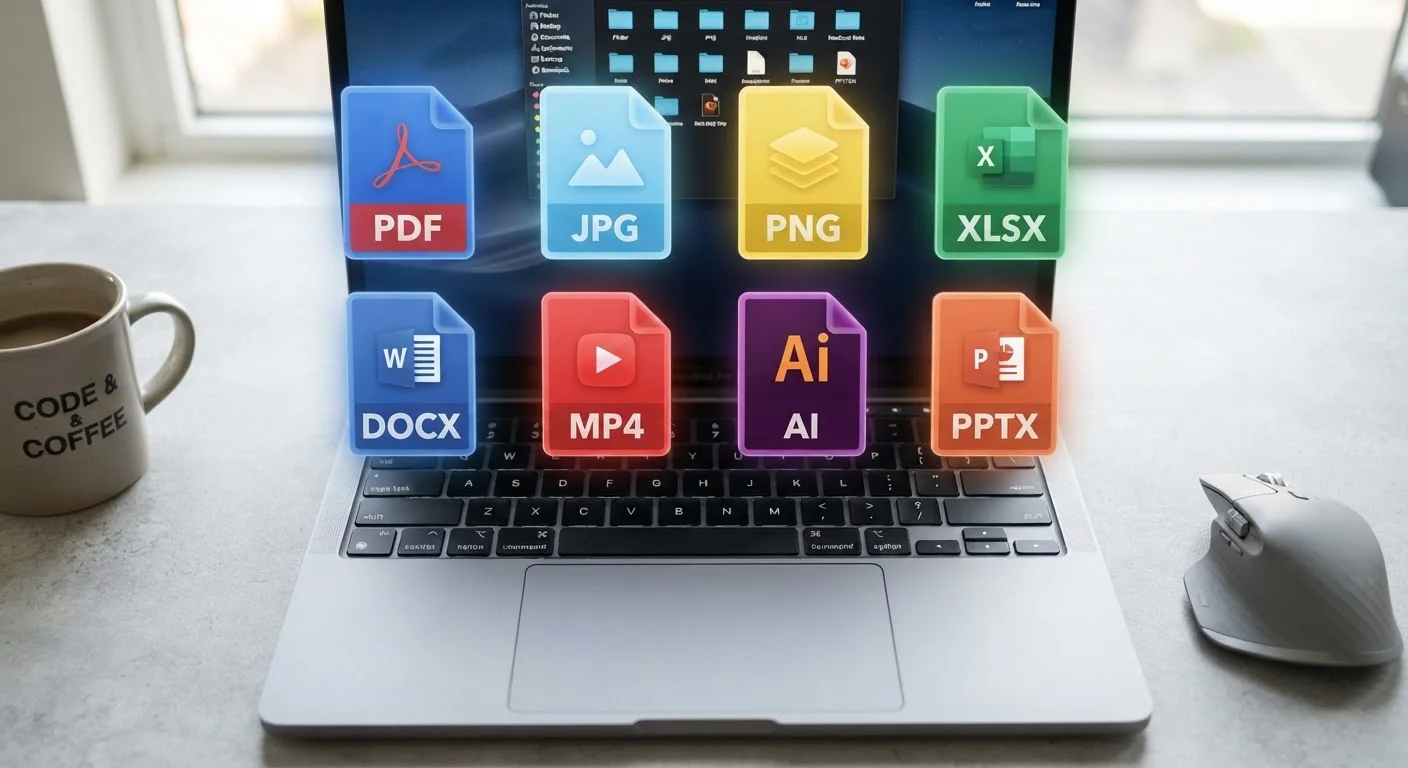
Photo credit: AdvisorHQ.net | Informative Website
In this article
DOCX, PDF, JPG, MP4 — file formats can be baffling. This guide explains what they are, why they differ, and when each one is typically used.
Key Takeaways
- A file format determines how data is stored, organized, and read by software.
- Different formats serve different purposes - editing, sharing, archiving, or streaming.
- The same document can often be saved in multiple formats without losing its core content.
- Choosing the wrong format can cause compatibility issues or unnecessary file bloat.
- Most apps let you convert or export files to a different format without special tools.
What Is a File Format, Really?
Think of a file format as the language a file is written in. Just as a book written in Spanish needs a Spanish-speaking reader, a file saved in a particular format needs software that understands that format to open and display it correctly.
Every file on your computer - a photo, a document, a song - is ultimately a string of ones and zeros. The format defines the rules for how those bits are arranged and what they mean. That's why a .jpg image and a .png image might look identical on your screen but are structured completely differently underneath.
File format
A standardized way of organizing and storing data in a file so that software knows how to read and display it.
File extension
The letters after the dot in a filename (e.g., .pdf, .jpg) that identify the file's format and tell the operating system which app to use.
Compression
A process that reduces file size by encoding data more efficiently, sometimes at the cost of some quality (lossy) and sometimes without any quality loss (lossless).
Lossless vs. lossy
Lossless compression keeps all original data intact; lossy compression permanently removes some data to achieve smaller file sizes.
Open standard
A file format whose specification is publicly available, allowing any software developer to build support for it without licensing restrictions.
Proprietary format
A file format owned and controlled by a specific company, which may limit which software can fully read or create it.
The format is usually indicated by the file extension - the short suffix after the dot in a filename. Your operating system uses this to decide which app to use when you double-click the file.
Common File Types and What They're Used For
Different categories of content have their own families of formats. Here's a practical overview:
Documents
- DOCX - Microsoft Word's default format. Great for editing and collaboration, with rich formatting options.
- PDF - Portable Document Format. Preserves layout exactly as intended across any device. Ideal for sharing final versions.
- TXT - Plain text with no formatting. Universal and lightweight, often used for notes or code.
Images
- JPG/JPEG - Compressed photo format. Smaller file size, best for photographs and web images.
- PNG - Supports transparency and lossless compression. Better for logos, screenshots, and graphics.
- GIF - Supports simple animation. Limited color range, commonly used for short looping clips online.
Audio & Video
- MP3 - Compressed audio. Near-universal compatibility for music and podcasts.
- MP4 - Compressed video container widely supported by phones, TVs, and streaming services.
- WAV - Uncompressed audio. Higher quality but much larger file size, preferred in professional audio work.
Data & Spreadsheets
- XLSX - Microsoft Excel's spreadsheet format.
- CSV - Comma-Separated Values. Plain text rows and columns readable by almost any data tool.
When to Use CSV Instead of XLSX
If you're sharing spreadsheet data with someone who uses different software - or uploading it to a web service - CSV is often the safer choice. Unlike XLSX, CSV has no formulas or formatting to break in transit. It's just clean rows and columns of text that virtually every program can read.
Why the Same Content Can Exist in Multiple Formats
Software developers and organizations have different goals, so they've created formats to serve those goals. A word processor prioritizes editing flexibility; a PDF viewer prioritizes display consistency. Neither is wrong - they solve different problems.
Open standards (like PDF or HTML) are designed so any software can read them. Proprietary formats (like DOCX or XLSX) are controlled by a specific company but are often so widely adopted that competitors build support for them anyway. This is why Google Docs can open a Microsoft Word file - interoperability benefits everyone.
Compression is another reason formats multiply. A photograph stored as a raw, uncompressed file might be 20 MB. The same image saved as a JPEG might shrink to 2 MB with barely visible quality loss. For sharing files online or storing thousands of photos, that difference matters enormously.
Formats and Software Compatibility
Just because a file extension is on your computer doesn't guarantee every app can open it perfectly. Some formats have multiple versions or sub-types that older software may not fully support. If a file looks broken or garbled after opening, the format version mismatch is often the culprit - try updating the app or asking for the file in a different format.
How to Choose the Right Format
The right format depends on what you're trying to do with the file:
- Sharing for viewing only: Use PDF for documents, JPG for photos. Both are widely readable without special software.
- Collaborating and editing: Use DOCX, XLSX, or a cloud format like Google Docs so others can make changes.
- Archiving for quality: Use PNG for images or WAV for audio when you want to preserve every detail without loss.
- Uploading to the web: Use compressed formats - JPG or WebP for images, MP4 for video - to keep load times fast.
- Sending data between systems: CSV is a safe, universal choice for spreadsheet data that needs to move between different software tools.
When in doubt, ask the person you're sending the file to what format works best for them. Many compatibility headaches can be avoided with one quick question.
Converting Between File Formats
Most software lets you convert files through a Save As or Export menu option. In Microsoft Word, for example, you can save a document directly as a PDF in just a few clicks - no extra tools needed.
For images, photo editors and even your phone's built-in tools often let you export in multiple formats. Free online converters exist for many file types, though it's worth being cautious about uploading sensitive documents to unfamiliar websites.
Keep in mind that some conversions are one-way or lossy. Converting a high-resolution PNG to a compressed JPEG permanently discards some image data - going back to PNG won't restore it. Similarly, a PDF converted back to DOCX may not perfectly match the original layout.
Understanding file formats is one piece of becoming more confident with technology overall. If you're also working through questions about how your devices connect to the internet, see our plain-English guide to mobile data, Wi-Fi, and hotspots for a similarly grounded overview.
Frequently Asked Questions

Author
Tech & Gadgets Editorial Team
Tech & Gadgets Editorial Team is the collective byline for our editorial team and contributor network. Articles published under this byline or an editorial pen name are researched, written, and reviewed according to our editorial standards for clarity, consistency, and independence before publication.
View all articles →