
Mobile Data, Wi-Fi, and Hotspots: A Plain-English Guide
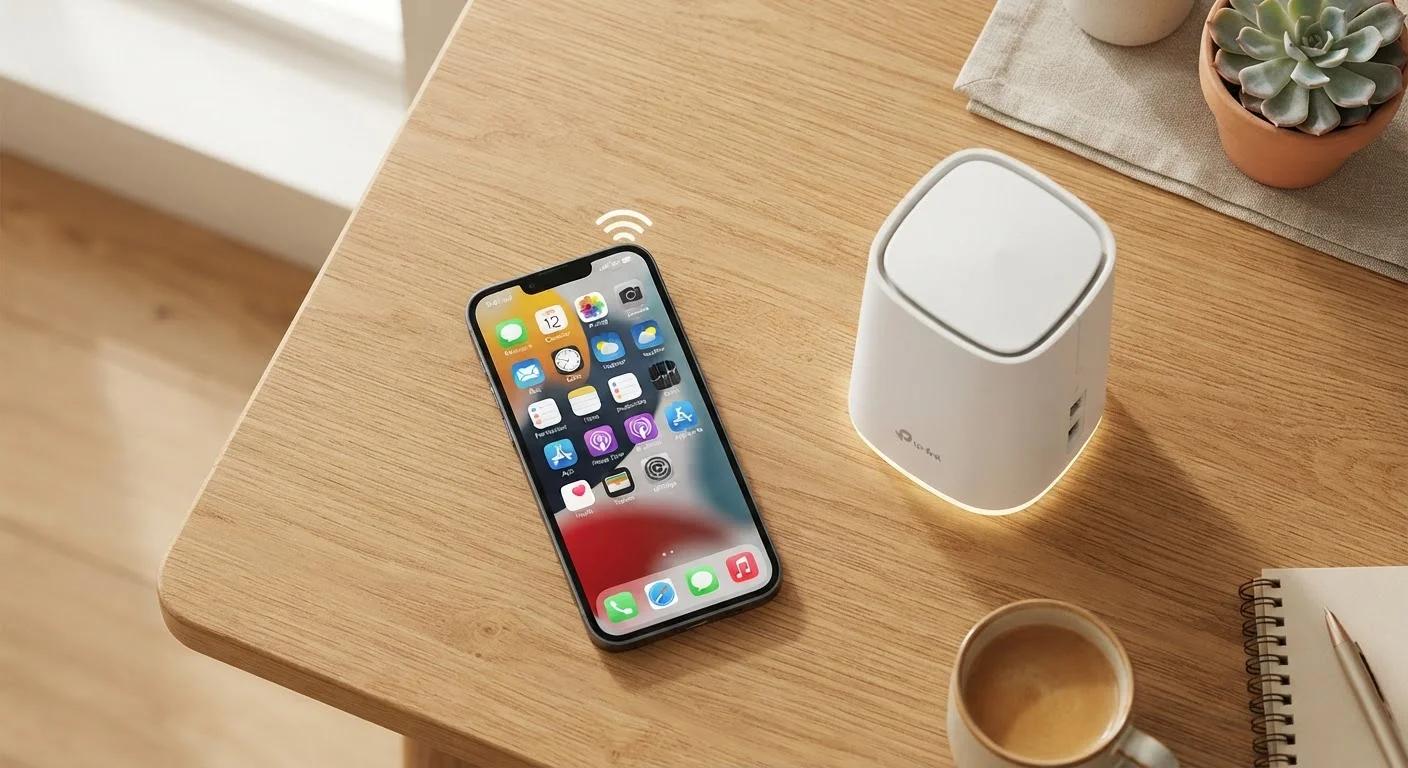
Photo credit: AdvisorHQ.net | Informative Website
In this article
Confused about when to use Wi-Fi vs. mobile data, or how hotspots work? This straightforward guide covers it all.
Key Takeaways
- Mobile data uses your carrier's cellular network and counts against your monthly plan allowance.
- Wi-Fi connects through a local router and is generally faster, more stable, and free of data caps at home.
- A hotspot lets you share your phone's mobile data connection with other devices like laptops or tablets.
- Public Wi-Fi networks can expose your data to risk - use caution and consider a VPN.
- Switching between Wi-Fi and mobile data is automatic on most phones, but you can control it manually.
What Is Mobile Data?
Mobile data is internet access delivered over a cellular network - the same infrastructure that carries phone calls and text messages. Your carrier (the company you pay for phone service) maintains towers across the country that broadcast signals your phone picks up to get online, even when there's no Wi-Fi nearby.
When you stream a video while commuting or check a map on a hiking trail, you're using mobile data. Most plans include a set monthly allowance measured in gigabytes (GB). A single gigabyte can support roughly an hour of standard-definition video streaming or several hundred web page loads, though actual usage varies.
Mobile data
Internet access delivered wirelessly through your carrier's cellular network, billed against your monthly plan's data allowance.
Wi-Fi
A wireless connection to a local router that provides internet access without using your cellular plan.
Hotspot
A feature that lets your smartphone share its cellular internet connection with other nearby devices over Wi-Fi.
Gigabyte (GB)
A unit of digital data used to measure how much internet you've used or how much your plan allows.
Tethering
Another word for using your phone as a hotspot - connecting another device to the internet through your phone's mobile data.
VPN (Virtual Private Network)
A tool that encrypts your internet traffic, making it harder for others to intercept your data - especially useful on public Wi-Fi.
LTE / 5G
Labels for cellular network generations. LTE (4G) and 5G indicate the speed and technology standard your connection uses.
Network generations - 3G, 4G LTE, and 5G - describe the speed and technology behind the connection. Newer generations are faster, but your phone must support them and your location must have coverage. If you're curious how your phone's software manages these connections behind the scenes, our guide on mobile operating system updates explains how your carrier settings are kept current.
What Is Wi-Fi and How Does It Differ?
Wi-Fi connects your device to the internet through a local wireless router - typically one in your home, office, or a public venue. The router itself is wired to a broadband service (like cable or fiber), then broadcasts a wireless signal your phone, tablet, or laptop can join.
The key difference from mobile data: Wi-Fi doesn't touch your cellular plan at all. Most home internet plans don't impose strict data caps the way phone plans do, which makes Wi-Fi the economical choice for large downloads, video calls, or streaming.
Wi-Fi also tends to be faster and more stable than mobile data in most indoor settings, especially on modern standards like Wi-Fi 6. The trade-off is range - you need to be within roughly 100-300 feet of the router, depending on walls and interference.
It's worth noting that Wi-Fi is only one of several wireless protocols used in connected technology. For a broader look at wireless standards - particularly in smart home contexts - see our comparison of Wi-Fi, Zigbee, Z-Wave, and Thread.
What Is a Hotspot?
A hotspot is a way to share your phone's mobile data connection with other devices. When you enable the hotspot feature (sometimes called "tethering" or "personal hotspot"), your phone acts like a portable Wi-Fi router. A laptop or tablet can then connect to your phone's hotspot and use your cellular data to get online.
Most smartphones have a built-in hotspot feature, typically found in Settings under "Network," "Connections," or similar. You set a name and password for the network, and nearby devices can join just as they would any Wi-Fi network.
Extend Your Hotspot Battery Life
Using your phone as a hotspot drains the battery faster than normal use. Plug your phone into a charger while it's acting as a hotspot for extended sessions. Also, reduce screen brightness and close unused apps to stretch your battery further.
Dedicated hotspot devices also exist - small gadgets sold or loaned by carriers that do nothing but create a mobile Wi-Fi bubble. These can be useful when multiple people regularly need to share a connection, since they often support more simultaneous devices and have larger batteries than a phone used as a hotspot.
Keep in mind that hotspot usage draws on your mobile data plan. Streaming video or downloading large files through a hotspot can consume gigabytes quickly, so track your usage if your plan has a cap.
When to Use Each Connection Type
A simple rule of thumb: default to Wi-Fi when it's available and trustworthy, and rely on mobile data when you're on the move. Here's a practical breakdown:
- At home or in the office: Use Wi-Fi. It's faster, doesn't eat your data allowance, and is generally more secure than public networks.
- Commuting or traveling: Mobile data is your fallback. Your phone switches automatically, but you can manually disable Wi-Fi to stop it from connecting to weak or unfamiliar networks.
- Working remotely from a coffee shop or hotel: Public Wi-Fi is convenient but carries risk (see the next section). A personal hotspot from your phone may be a safer alternative.
- Connecting a laptop in a pinch: Use your phone as a hotspot. This is especially handy when traveling - our travel planning guide covers connectivity tips worth bookmarking before any trip.
Your phone's operating system decides which connection to use automatically, but you're always in control. Airplane mode turns off all wireless radios; toggling Wi-Fi or mobile data individually gives you finer control without cutting off calls.
Staying Safe on Public Networks
Public Wi-Fi - at airports, hotels, cafés, and libraries - is convenient but comes with real risks. These networks are open to anyone nearby, which means someone on the same network could potentially intercept data you send or receive if that data isn't encrypted.
Practical steps to reduce your exposure:
- Look for HTTPS: The padlock icon in your browser's address bar indicates the connection between your device and the website is encrypted. Avoid entering passwords or payment info on sites without it.
- Use a VPN: A virtual private network (VPN) encrypts all traffic leaving your device, making it much harder for others on the same network to eavesdrop. Many reputable VPN apps are available; evaluate options carefully before choosing one.
- Avoid sensitive tasks: Online banking, medical portals, or any login involving sensitive information is better handled over your mobile data or a trusted home network.
- Turn off auto-connect: Most phones can be set to stop joining open Wi-Fi networks automatically. This prevents your device from connecting to unfamiliar networks without your knowledge.
If you want to understand how your phone's platform shapes these privacy settings, our overview of Android vs. iOS differences walks through how each system handles network permissions and security defaults.
Frequently Asked Questions

Author
Tech & Gadgets Editorial Team
Tech & Gadgets Editorial Team is the collective byline for our editorial team and contributor network. Articles published under this byline or an editorial pen name are researched, written, and reviewed according to our editorial standards for clarity, consistency, and independence before publication.
View all articles →