
Habits That Quietly Shorten the Life of Your Laptop
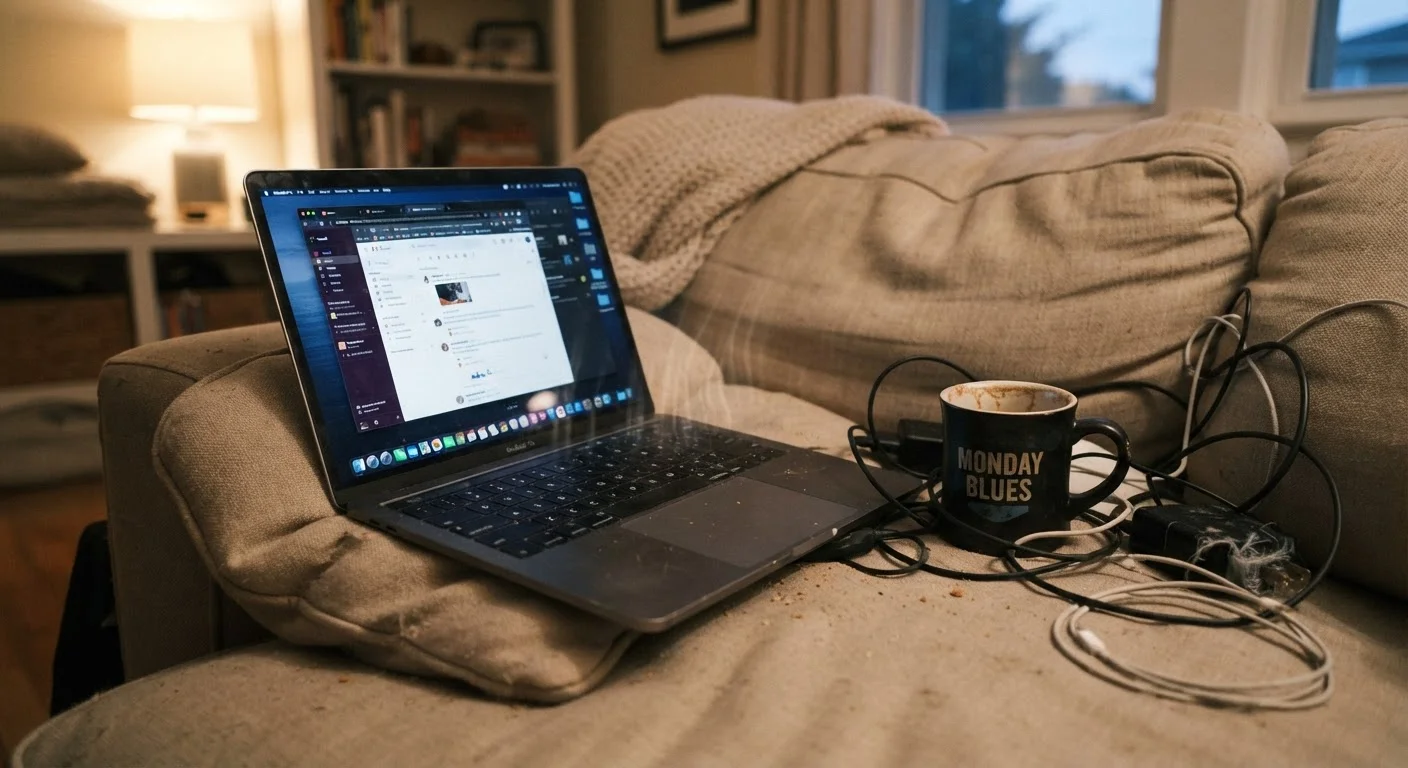
Photo credit: AdvisorHQ.net | Informative Website
In this article
Everyday routines — charging practices, ventilation, software clutter — can wear out a laptop faster than most people realize. Here is what to watch for.
Key Takeaways
- Keeping a laptop plugged in at 100% charge all the time degrades the battery faster than most users expect.
- Blocking ventilation vents by using a laptop on soft surfaces causes internal components to overheat.
- Too many background apps and startup programs quietly drain performance and accelerate hardware wear.
- Skipping software updates leaves systems vulnerable and can cause inefficient resource usage over time.
- Physical habits - eating over the keyboard, rough handling - cause damage that compounds gradually.
Why Everyday Habits Matter More Than Hardware
A laptop that fails after three years often did not fail because it was poorly made - it failed because of how it was used every single day. The habits covered here are not dramatic. They are the small, ordinary things: where you set the machine down, how often you restart it, whether you eat lunch next to it. Individually, each seems harmless. Cumulatively, they determine whether your laptop lasts four years or eight.
If you are weighing whether a laptop even makes sense for your situation, the comparison between desktops and laptops is worth reading first - laptops make specific trade-offs in repairability and thermals that make these habits especially important for portable machines.
Heat Is the Biggest Silent Killer
Sustained high internal temperatures are one of the leading causes of premature laptop failure. A laptop running hot regularly can shorten the life of its battery, processor, and storage drive significantly. If your laptop feels uncomfortably warm to the touch on a regular basis, that is a signal worth acting on - not ignoring.
The Mistakes Most Laptop Owners Are Making
The following habits are common across all kinds of users - students, remote workers, and casual home users alike. None require technical knowledge to fix, and most take only minutes to address.
Leaving the laptop plugged in at 100% charge indefinitely.
Why it happens: It feels logical to keep a device fully charged and ready - most people treat laptops like smartphones and leave them on the charger constantly.
Using the laptop on soft surfaces that block the cooling vents.
Why it happens: Portability is the whole point of a laptop, and the couch or bed is a natural place to use one. Most users are unaware that vents are often located on the bottom panel.
Never restarting or shutting down - only using sleep mode.
Why it happens: Sleep mode is fast and convenient, so many users go days or weeks without a full restart.
Ignoring software updates for weeks or months.
Why it happens: Update prompts appear at inconvenient moments, and clicking 'remind me later' becomes a habit.
Letting startup programs and background apps accumulate unchecked.
Why it happens: Every app installed tends to add itself to the startup queue, and most users never review or change these settings.
Eating and drinking over the keyboard regularly.
Why it happens: Desks double as dining tables for many remote workers, and the laptop is simply already open.
~500
Full charge cycles in a typical laptop battery
Battery manufacturers generally rate lithium-ion cells for around 500 full charge cycles before capacity noticeably degrades, making partial charging habits meaningful.
10°C
Temperature rise that can halve component lifespan
A widely cited principle in electronics engineering holds that every 10°C increase in sustained operating temperature can roughly double the rate of component degradation.
Building Habits That Protect Your Investment
Avoiding these mistakes does not require a maintenance routine that takes significant time. It mainly requires a few changed defaults and a bit of awareness. Keep a hard surface nearby for laptop use. Set your battery charge limit if your laptop supports it. Schedule a restart a few times a week. Review your startup programs once.
Soft Surfaces Block Critical Airflow
Placing your laptop directly on a bed, couch, or pillow covers the bottom vents that expel hot air. Even a few minutes in this position can spike internal temperatures noticeably. If you regularly work from a couch or bed, a lap desk or hard tray provides the clearance your laptop needs to breathe.
Physical care matters too. Handle the screen by its corners, not the bezel. Close the lid firmly but not forcefully. If you carry the laptop in a bag, make sure it has a dedicated padded compartment rather than sharing space with sharp-edged items.
The same logic that applies to preventive maintenance in other areas of life - small, consistent care preventing larger failures - applies here. Just as routine vehicle maintenance prevents costly repairs, consistent laptop habits preserve performance and postpone replacement costs.

Author
Tech & Gadgets Editorial Team
Tech & Gadgets Editorial Team is the collective byline for our editorial team and contributor network. Articles published under this byline or an editorial pen name are researched, written, and reviewed according to our editorial standards for clarity, consistency, and independence before publication.
View all articles →