
Your Computer Is Running Slowly - Here Is Why
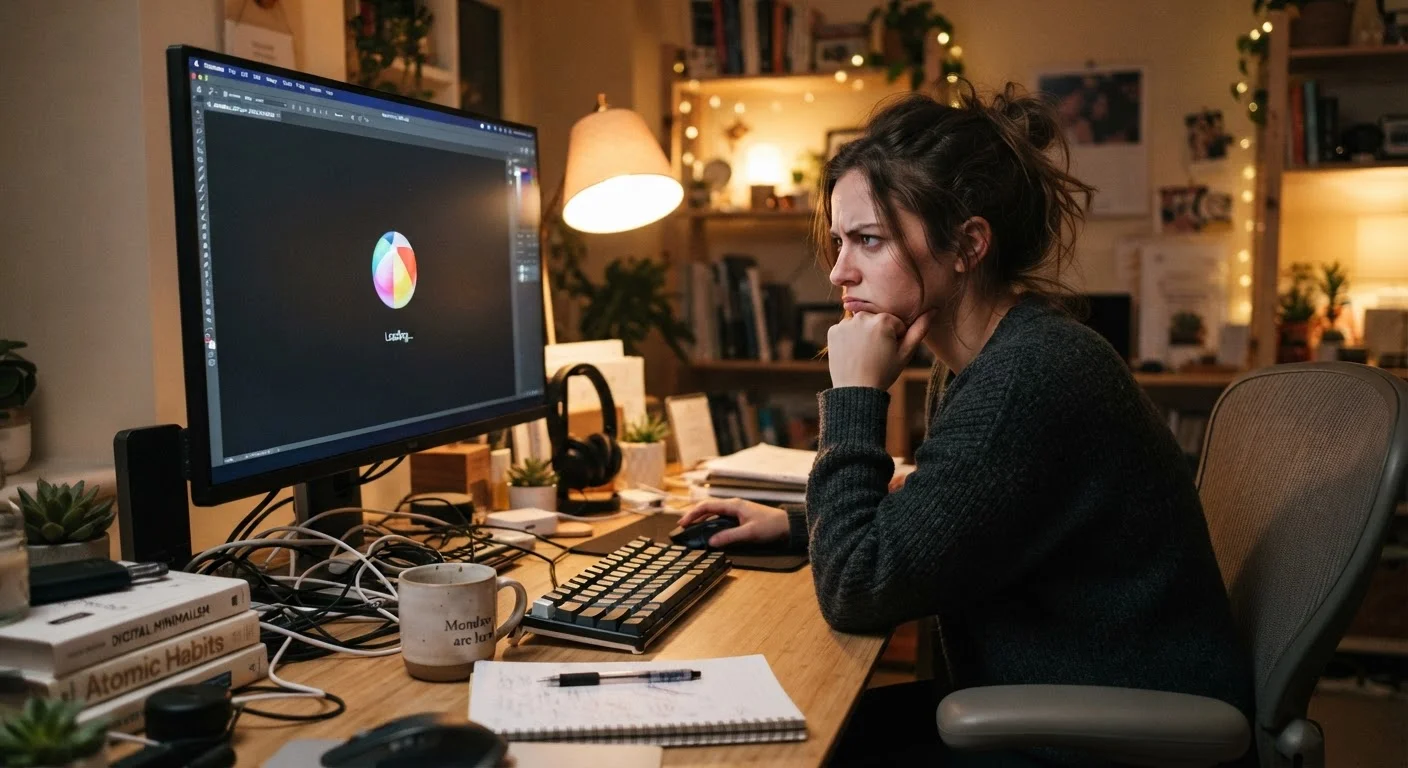
Photo credit: AdvisorHQ.net | Informative Website
A slow PC is frustrating but rarely a mystery. Explore the most common reasons computers lose speed and what each cause means for everyday users.
Key Takeaways
- Too many programs running at startup is one of the most common causes of slowdowns.
- A nearly full hard drive forces your computer to work harder, reducing overall speed.
- Outdated software and skipped updates can quietly drain performance over time.
- Malware and unwanted background processes consume resources without obvious signs.
- Insufficient RAM causes your computer to struggle when multitasking or running modern apps.
Why Your Computer Slows Down - And Why It Matters
A computer that once felt snappy but now crawls through basic tasks is not just annoying - it is a signal worth paying attention to. Slowdowns rarely happen without a reason, and understanding the cause puts you in control rather than at the mercy of a tech repair bill.
Most performance problems fall into a handful of predictable categories: too much software fighting for limited resources, aging hardware struggling with modern demands, or maintenance habits that have quietly slipped. This article walks through the most common mistakes users make that lead to slow computers - and what you can actually do about each one.
If you have ever wondered how specs like RAM and processor speed factor in, our guide on what laptop specs actually mean can give you helpful background.
Allowing too many programs to launch automatically at startup.
Why it happens: When you install software, many programs add themselves to the startup list by default without asking. Over time, dozens of apps may be loading simultaneously every time your computer boots.
Letting the hard drive fill up to near capacity.
Why it happens: Most people store files without tracking how much space remains. Your operating system needs free space to create temporary files and move data around; when that space disappears, performance degrades noticeably.
Skipping software and operating system updates for long periods.
Why it happens: Update prompts appear at inconvenient times, and it is easy to dismiss them repeatedly. Many users are also uncertain whether updates are safe to install or fear they will change something they rely on.
Ignoring background processes and resource-hungry applications.
Why it happens: Applications running in the background - browser tabs, cloud sync tools, video call apps - consume memory and processor power even when you are not actively using them. Most users never check what is actually running.
Running a computer with far less RAM than current tasks require.
Why it happens: RAM requirements have grown as apps, browsers, and operating systems have become more demanding. A computer that was adequate several years ago may now struggle, especially if you keep many browser tabs or applications open simultaneously.
Neglecting to scan for malware when performance suddenly drops.
Why it happens: Many people associate malware only with obvious symptoms like pop-up ads or a locked screen. In reality, much modern malware runs quietly, consuming system resources without any visible sign.
Bigger Patterns Behind the Slowdown
Individual mistakes compound over time. A computer that has accumulated startup bloat, a stuffed hard drive, skipped updates, and background malware will feel dramatically slower than one where just a single issue is present. Think of performance like a household budget - small drains add up until the whole system is stretched thin.
10-15%
Minimum recommended free disk space
Operating systems generally need a buffer of free space on the primary drive to manage temporary files and system operations efficiently.
~30%
Of PC slowdowns linked to startup bloat
Performance research and user surveys consistently identify excessive startup programs as one of the leading self-reported causes of a slow boot experience.
It is also worth recognizing when a slowdown signals something more serious. Unusual fan noise combined with sluggishness can point to overheating, which, if ignored, can permanently damage components. Our article on habits that quietly shorten the life of your laptop covers these patterns in depth.
Security threats are another hidden driver of poor performance. Some malware is specifically designed to run quietly in the background - using your computer's resources to mine cryptocurrency or send spam - while giving you no obvious warning. Reviewing practical home computer security steps is a smart companion move to addressing a slow machine.
Sudden Slowdowns Deserve Closer Attention
If your computer goes from performing normally to crawling without any obvious change on your part, do not assume it is routine aging. Sudden slowdowns can indicate malware, a failing hard drive, or overheating - all of which can worsen quickly if ignored. Run a malware scan and check your system's storage health before dismissing the symptom.
The good news: most of these issues are reversible with straightforward steps and no technical expertise required. Consistent maintenance habits - clearing out startup programs, keeping software updated, and monitoring storage - go a long way toward keeping a computer feeling responsive for years longer than it otherwise would.

Author
Tech & Gadgets Editorial Team
Tech & Gadgets Editorial Team is the collective byline for our editorial team and contributor network. Articles published under this byline or an editorial pen name are researched, written, and reviewed according to our editorial standards for clarity, consistency, and independence before publication.
View all articles →