
Keeping Your Home Computer Secure: A Practical Approach for Everyday Users
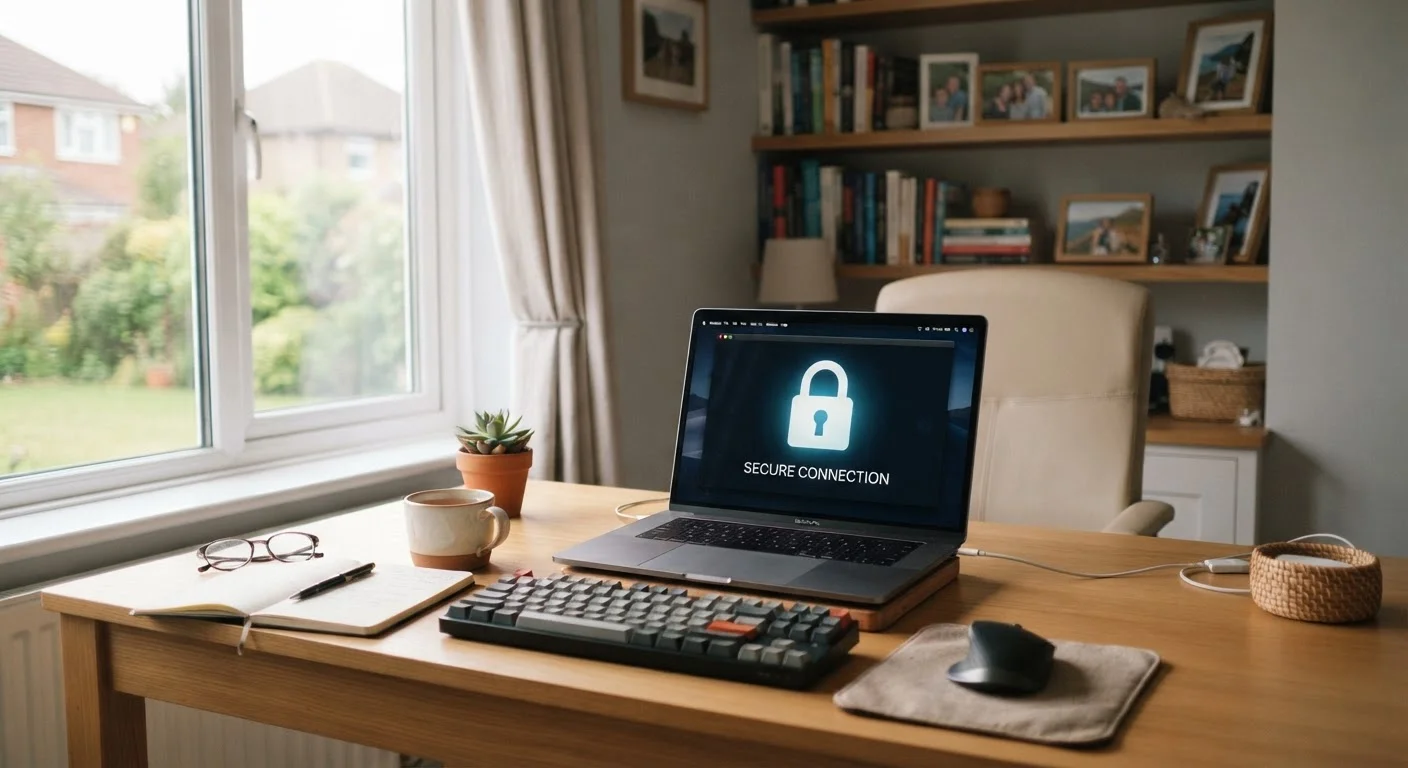
Photo credit: AdvisorHQ.net | Informative Website
In this article
Strong computer security does not require technical expertise. These straightforward practices cover the most important ways to protect your devices and data.
Key Takeaways
- Keeping software and operating systems updated closes security gaps that attackers actively exploit.
- Strong, unique passwords combined with two-factor authentication dramatically reduce unauthorized access risk.
- Recognizing phishing attempts - fake emails and links - prevents the majority of common attacks.
- Regular data backups ensure you can recover your files even if something goes wrong.
- A basic security routine, done consistently, is far more effective than advanced tools used sporadically.
Why Home Computer Security Matters More Than Ever
Home computers store some of our most sensitive information - financial records, personal photos, passwords, and private communications. Yet most households treat security as an afterthought, leaving devices exposed to threats that are increasingly automated and widespread.
Cybercriminals rarely target individuals specifically. Instead, they use automated tools that scan millions of devices looking for easy entry points: outdated software, weak passwords, or a single careless click on a deceptive link. The good news is that the same basic practices that protect large organizations work just as well at home - and none of them require a technical background.
If you also use a smartphone, many of these principles carry over. See our guide to smartphone security habits for device-specific advice.
Keep your operating system and applications updated at all times.
Software updates frequently patch security vulnerabilities - flaws in the code that attackers can exploit. Delaying updates leaves known entry points open, and many widespread attacks specifically target outdated systems. Enabling automatic updates removes the friction of remembering to do this manually.
Use strong, unique passwords for every account and enable two-factor authentication wherever possible.
Reusing passwords means a single data breach at one site can compromise all your accounts. Two-factor authentication (2FA) requires a second verification step - such as a code on your phone - making stolen passwords far less useful to attackers.
Install and maintain reputable antivirus or security software.
Security software can detect and block many common threats - including malware, ransomware, and spyware - before they cause harm. Modern operating systems include built-in protections, but keeping them active and updated is essential.
Be skeptical of unsolicited emails, links, and attachments.
Phishing attacks use convincing fake messages to trick users into revealing credentials or downloading malicious software. Developing the habit of pausing and verifying before clicking is one of the most effective defenses available.
Back up your important files regularly and verify the backups work.
Backups protect you against hardware failure, accidental deletion, and ransomware attacks that can otherwise result in permanent data loss. A backup that has never been tested may not actually be recoverable when you need it.
The Core Practices That Make the Biggest Difference
Security experts consistently point to a short list of behaviors that account for the vast majority of protection against common threats. These aren't complex - they're about building reliable habits.
80%+
Of breaches involving stolen or weak credentials
Verizon's Data Breach Investigations Report has consistently found that the large majority of hacking-related breaches involve compromised passwords.
3.4B
Phishing emails sent daily worldwide
According to cybersecurity research estimates, phishing remains the most common delivery method for cyberattacks targeting everyday users.
Passwords deserve special attention. Reusing the same password across multiple sites means one breach exposes everything. A password manager can generate and store strong, unique passwords for every account without requiring you to memorize them - and security professionals widely consider them one of the most practical tools available to everyday users.
Two-factor authentication (2FA) - where you confirm your login with a second step, such as a code sent to your phone - adds a layer of protection that makes stolen passwords far less useful to an attacker.
Recognizing Threats Before They Reach You
The most sophisticated security tools can't fully compensate for a moment of inattention. Phishing - where attackers send convincing fake emails or messages designed to steal your credentials or install malicious software - remains one of the most common and effective attack methods.
“It's not the sophisticated, targeted attacks that most people need to worry about. It's the automated, opportunistic ones - and those are stopped by basic hygiene: updates, strong passwords, and not clicking on things you weren't expecting.”
— Brian Krebs, Independent cybersecurity journalist and researcher
A few reliable signals can help you identify suspicious messages: unexpected urgency, requests for passwords or payment information, sender addresses that don't match the organization they claim to represent, and links that show a different URL when you hover over them. When in doubt, go directly to the organization's website rather than clicking any link in the message.
Your home network is also worth securing. A router with a strong, unique password and up-to-date firmware closes entry points that are frequently overlooked. If you use smart home devices, our smart home security guide covers how to lock down your connected devices as part of the same network.
Backing Up and Staying Prepared
Even with strong security habits in place, no system is completely immune. Hardware fails, ransomware (malicious software that locks you out of your files) does reach home users, and accidents happen. Regular backups are your safety net.
A practical backup approach follows the 3-2-1 rule: keep three copies of your important data, on two different types of storage, with one copy stored off-site or in the cloud. This ensures that no single event - a fire, a theft, or a malware attack - can wipe out everything.
Our personal file backup checklist walks through exactly what to back up and how to verify your copies are actually recoverable. Setting this up once and letting it run automatically is one of the highest-value steps you can take for your digital peace of mind.
Security and performance are also connected - a slow or struggling computer can sometimes indicate a problem. If you notice your machine behaving unusually, understanding why your computer is running slowly can help you identify whether something more serious is going on.

Author
Tech & Gadgets Editorial Team
Tech & Gadgets Editorial Team is the collective byline for our editorial team and contributor network. Articles published under this byline or an editorial pen name are researched, written, and reviewed according to our editorial standards for clarity, consistency, and independence before publication.
View all articles →