
Settings Most People Never Change - But Probably Should
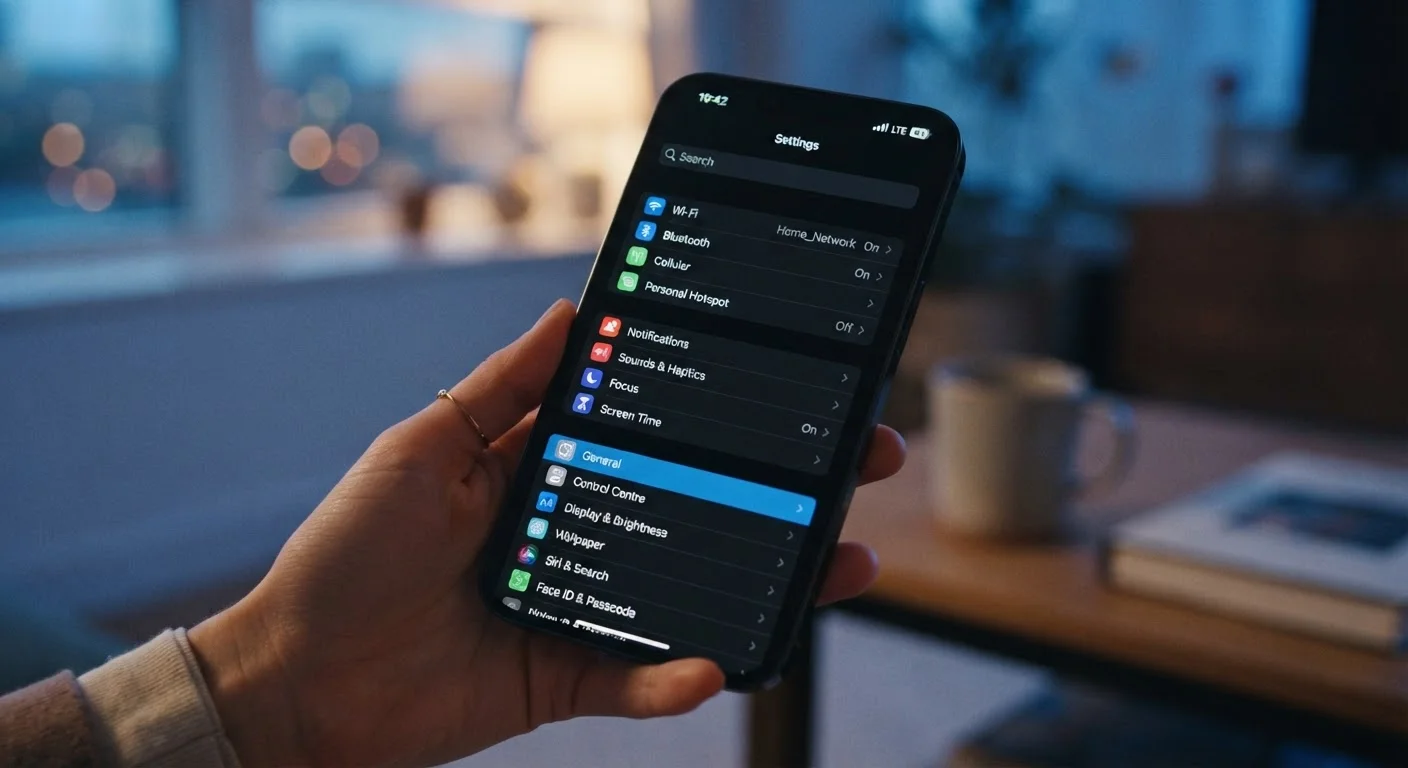
Photo credit: AdvisorHQ.net | Informative Website
A curated list of phone settings that improve privacy, battery life, and everyday usability, with an explanation of why each one matters.
Key Takeaways
- Location services, ad tracking, and background app activity are commonly overlooked but easy to adjust.
- Small setting changes can extend battery life and reduce how much personal data apps collect.
- Most of these settings take under two minutes to find and change on any modern smartphone.
Your Phone's Default Settings Aren't Optimized for You
When you take a new phone out of the box, it comes configured for the average user - which usually means maximum convenience for the manufacturer, not maximum value for you. Many default settings quietly drain your battery, share more data than you realize, and make everyday tasks harder than they need to be.
The good news: adjusting these settings doesn't require technical know-how. Most changes live just a few taps deep in your phone's settings app, and understanding why each one matters makes it much easier to decide what's right for your situation. For a broader look at how the devices around you collect data, see our guide on smart home privacy and data collection.
Limit Precise Location to Apps That Actually Need It
Most phones now offer two location options: precise and approximate. Precise location shares your exact GPS coordinates; approximate location shares a general area. Navigation and ride-sharing apps genuinely need precise location. A weather app or a coupon app typically does not.
On both Android and iPhone, you can review each app's location permission individually and downgrade to approximate where it makes sense. While you're there, check whether apps are accessing your location always, only while using the app, or not at all - and revoke access from any app that shouldn't have it.
Most apps don't need your exact GPS coordinates - approximate location is enough.
Turn Off Ad Tracking (It's Easier Than You Think)
Both Android and iPhone include a setting that limits how advertisers track your behavior across apps to build a profile of your interests. On iPhone, this is called App Tracking Transparency and lives under Settings > Privacy & Security > Tracking. On Android, you can find a similar option under Privacy settings, often labeled Ads or Ad personalization.
Turning this off doesn't eliminate ads, but it does reduce how much data is collected about you and shared with ad networks. It's one of the more impactful privacy changes you can make in under a minute.
Disabling ad tracking cuts data sharing with advertisers without removing ads entirely.
Disable Background App Refresh for Apps You Rarely Use
Background App Refresh allows apps to update their content even when you're not using them. For email or navigation apps, this is genuinely useful. For a game you open once a week or a retail app you rarely browse, it quietly consumes battery and data in the background.
On iPhone, go to Settings > General > Background App Refresh and toggle it off for individual apps. Android handles this through battery settings, where you can restrict background activity per app. Trimming this list can noticeably improve battery endurance. For more context on what's myth and what's real about battery behavior, check out common smartphone battery myths.
Background App Refresh drains battery silently - restrict it for apps you rarely open.
Enable Two-Factor Authentication on Your Phone's Account
Your phone is tied to an account - Apple ID or Google Account - that stores contacts, photos, passwords, and payment methods. If someone gains access to that account, they can reach almost everything on your device.
Two-factor authentication (2FA) adds a second verification step - typically a code sent to your phone or generated by an app - before anyone can log in from a new device. It's available in account settings for both Apple and Google, and takes about five minutes to set up. It's one of the most effective security upgrades available to everyday users.
Two-factor authentication on your main account is one of the highest-impact security changes you can make.
Switch to Automatic Software Updates
Many people dismiss update notifications and never get around to installing them manually. The problem is that software updates frequently include patches for known security vulnerabilities - meaning an unpatched phone is a more exposed phone.
Setting your phone to update automatically overnight means you're not relying on willpower to stay current. On iPhone, find this under Settings > General > Software Update > Automatic Updates. Android devices have similar options under System > System Update. Our guide on mobile operating system updates explains what these updates actually change and why staying current matters.
Automatic updates close security gaps without requiring you to remember to do it yourself.
Review Which Apps Can Access Your Microphone and Camera
Apps frequently request access to your microphone or camera during setup - and many people tap Allow without much thought. Over time, you may have granted these permissions to apps that have no clear need for them.
Both iPhone and Android let you see a full list of which apps have these permissions under Privacy settings. It's worth scrolling through and revoking access for any app where you can't immediately identify why it would need your camera or microphone. This is a quick check that many people never do.
A quick review of microphone and camera permissions often reveals surprising app access.
Making These Changes Stick
None of these adjustments are permanent commitments. If you turn off a setting and find it affects something you relied on, you can always re-enable it. Think of this as an audit rather than a lock-in - a chance to understand what your phone is doing in the background and decide for yourself what trade-offs you're comfortable with.
Set a Reminder to Revisit These Settings
App permissions, background refresh lists, and privacy options can shift after major OS updates or when you install new apps. A brief quarterly check - even just five minutes - helps ensure your settings still reflect your preferences. Put a reminder in your calendar once every few months so it doesn't fall through the cracks.
For deeper protection across your phone, including lock screen and app permission habits, our article on smartphone security habits that actually work is a practical next step. And if you want to understand what happens when you grant an app access to your location or microphone, app permissions explained breaks it down clearly.

Author
Tech & Gadgets Editorial Team
Tech & Gadgets Editorial Team is the collective byline for our editorial team and contributor network. Articles published under this byline or an editorial pen name are researched, written, and reviewed according to our editorial standards for clarity, consistency, and independence before publication.
View all articles →