
Keeping Your Smartphone Secure: Habits That Actually Work
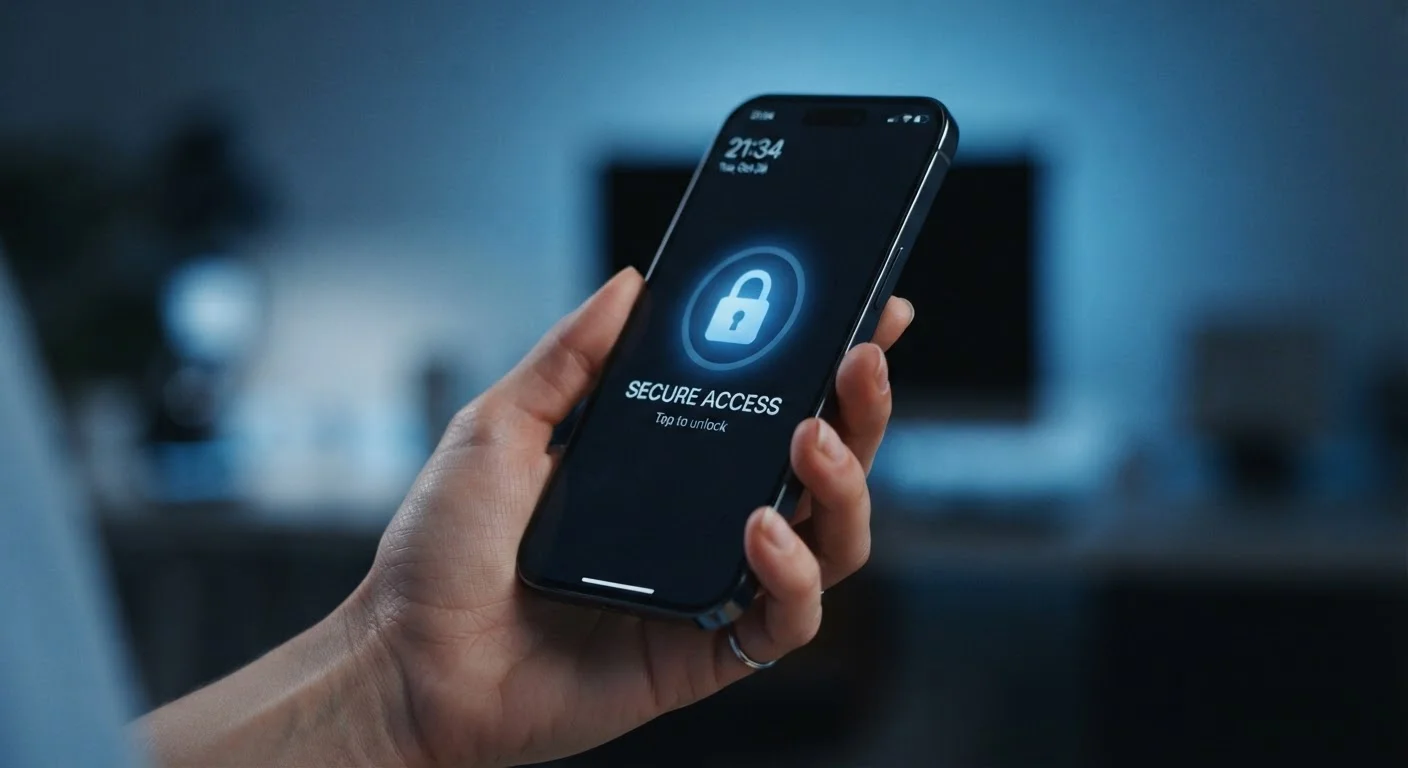
Photo credit: AdvisorHQ.net | Informative Website
In this article
From lock screen settings to app permissions, discover the security habits that protect your personal data on any phone.
Key Takeaways
- A six-digit PIN or biometric lock is one of the most effective first defenses against unauthorized access.
- Reviewing app permissions regularly prevents apps from accessing data they don't actually need.
- Keeping your phone's operating system updated closes known security vulnerabilities attackers exploit.
- Public Wi-Fi without a VPN exposes your data to interception - use mobile data or a trusted VPN instead.
- Phishing attempts via text and email are among the most common ways phones get compromised.
Why Your Phone Deserves the Same Security Attention as Your Computer
Your smartphone holds more personal information than most filing cabinets ever did - banking apps, health data, passwords, private messages, and photos. Yet many people secure their phones far less carefully than their laptops. That gap is exactly what attackers count on.
The good news is that protecting your phone doesn't require technical expertise. A handful of consistent habits, applied across the most common risk areas, handles the vast majority of real-world threats. If you've already explored computer security practices, you'll recognize some familiar ground here - but phones have their own specific vulnerabilities worth understanding.
68%
Smartphone users who don't use a password manager
According to a Security.org survey, the majority of smartphone users still rely on memory or repeated passwords rather than a dedicated password manager.
1 in 3
Mobile phishing attacks targeting credentials
Research from Lookout's Mobile Phishing Report indicates roughly one in three mobile phishing attacks specifically targets login credentials.
Lock Screen and Authentication: Your First Line of Defense
If someone picks up your unlocked phone, every app, account, and file on it is immediately accessible. A strong lock screen changes that entirely.
Use at least a six-digit numeric PIN rather than a four-digit one - the difference in crack resistance is significant. A strong alphanumeric passcode is even better. Biometrics like fingerprint or face unlock are convenient additions, but pair them with a strong PIN as a backup, since biometrics can occasionally fail or be bypassed in edge cases.
Set your screen to lock automatically after no more than 30 seconds of inactivity. It feels minor, but this habit prevents opportunistic access in coffee shops, on public transit, or anywhere your phone could briefly leave your hands. Also disable notification previews on the lock screen - a text preview showing a one-time password defeats the purpose of having a lock at all.
Use a six-digit or longer PIN, and pair biometrics with a strong backup passcode.
Biometric authentication is convenient but not infallible. A longer PIN adds a meaningful layer of resistance against both physical access and automated guessing attacks.
Audit app permissions quarterly and revoke access that isn't clearly justified.
Apps accumulate permissions over time, and many request more than they need. Unnecessary access to your location, microphone, or contacts creates data exposure with no benefit to you.
Enable automatic OS and app updates to close security vulnerabilities promptly.
Security patches are often released in response to vulnerabilities that are already being exploited in the wild. Delaying updates extends your window of exposure unnecessarily.
Turn on two-factor authentication for email, banking, and any account holding sensitive data.
Even if a password is stolen or guessed, 2FA means an attacker still can't access the account without a second verification step that only you can provide.
Never tap links in unexpected texts or emails - go directly to the app or website instead.
Phishing messages often closely mimic legitimate notifications from banks, carriers, or services. Navigating directly bypasses any deceptive link entirely.
App Permissions, Updates, and What You Install
Every app you install is a potential access point. Two habits matter most here: reviewing permissions and keeping everything updated.
Open your phone's settings and look at which apps have access to your location, microphone, camera, and contacts. You'll almost certainly find apps that have permissions they have no reasonable need for. Revoke anything that doesn't make obvious sense. Both Android and iOS let you set location access to "only while using the app" rather than always - use that option by default.
Operating system updates aren't just about new features. They patch security vulnerabilities that attackers actively exploit. Enable automatic updates for both your OS and your apps so those patches arrive without requiring you to remember. Check out settings most people overlook for other adjustments that improve both security and privacy.
Stick to your phone's official app store. Third-party app sources carry a substantially higher risk of malware, and the convenience rarely outweighs the exposure.
Networks, Passwords, and Phishing Awareness
Public Wi-Fi networks - at airports, hotels, and cafes - are convenient but potentially risky. Data transmitted over unencrypted public networks can be intercepted. When you need to do anything sensitive (banking, email, shopping), switch to your mobile data connection or use a reputable VPN (Virtual Private Network - a service that encrypts your internet traffic).
Weak or reused passwords are among the most common ways accounts get taken over. Using a password manager on your phone makes it practical to use a unique, strong password for every account without memorizing them. Enable two-factor authentication (2FA) - a second verification step, often a code sent to your phone - on every account that supports it, especially email and banking.
Phishing - deceptive messages designed to trick you into revealing credentials or tapping malicious links - is increasingly targeted at mobile users. Spotting phishing on a mobile device takes a specific kind of awareness, since small screens make suspicious URLs harder to inspect. Be skeptical of unexpected texts or emails asking you to tap a link, even if they appear to come from a familiar sender.
Backups and What to Do If Something Goes Wrong
No security habit is foolproof, so having a current backup of your phone's data is essential. If your device is lost, stolen, or compromised, a recent backup means you're not starting from scratch. Use your phone's built-in cloud backup (iCloud for iPhone, Google One or manufacturer backup for Android) and confirm it's actually running - many people assume it's on when it isn't.
Enable your phone's remote wipe feature before you ever need it. Both major platforms allow you to erase a lost or stolen phone remotely, which can prevent your data from being accessed even after the device is gone. Our practical backup checklist walks through exactly what to protect and how. And if you're ever preparing to hand off an old device, read what to do before selling or recycling your phone to make sure your data doesn't go with it.

Author
Tech & Gadgets Editorial Team
Tech & Gadgets Editorial Team is the collective byline for our editorial team and contributor network. Articles published under this byline or an editorial pen name are researched, written, and reviewed according to our editorial standards for clarity, consistency, and independence before publication.
View all articles →