
Operating Systems Compared: Windows, macOS, and ChromeOS Side by Side
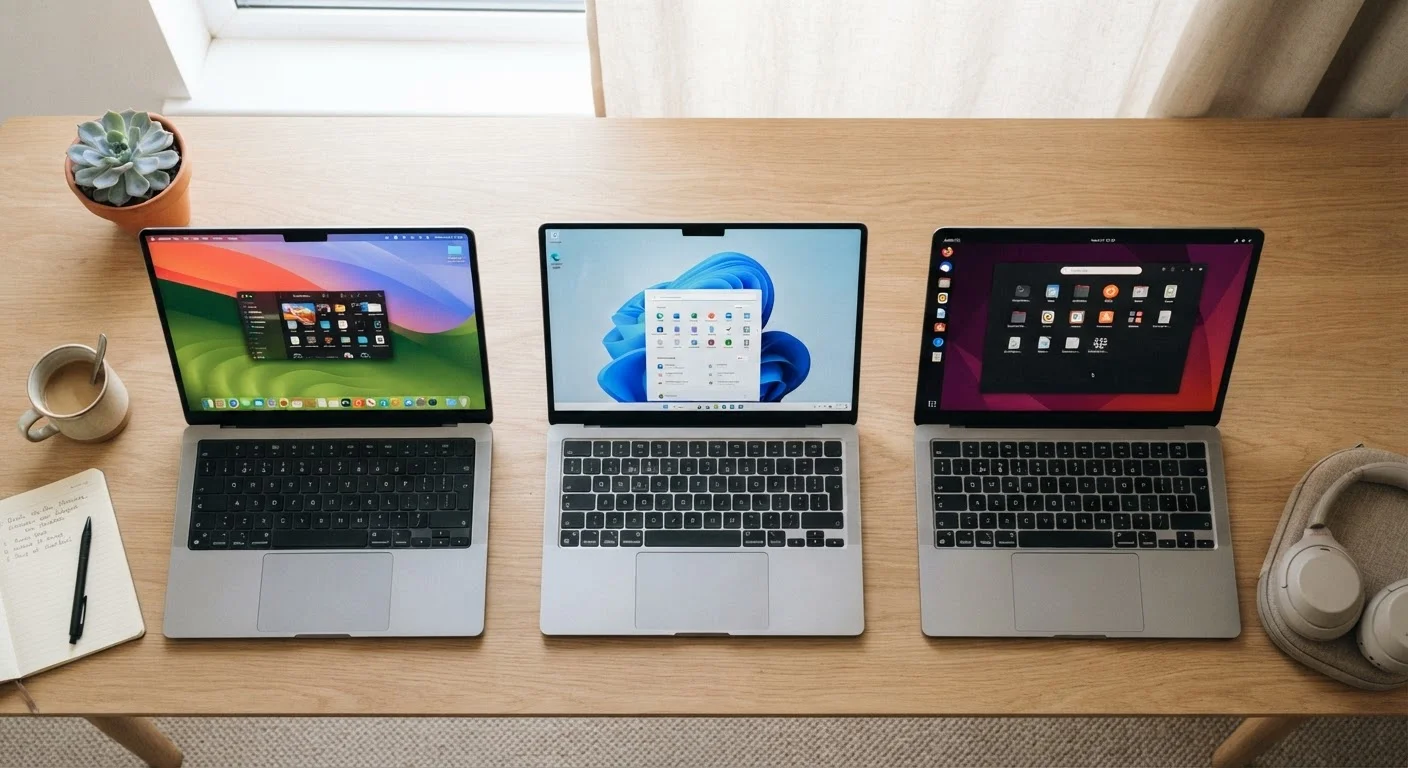
Photo credit: AdvisorHQ.net | Informative Website
In this article
Not sure which operating system fits your needs? This side-by-side look covers usability, software availability, and everyday differences.
Key Takeaways
- Windows offers the widest software compatibility and hardware choice, making it the most flexible option for most users.
- macOS delivers a polished, tightly integrated experience but is exclusive to Apple hardware at a premium price.
- ChromeOS is lightweight, secure, and simple - ideal for web-based tasks and users who live in a browser.
- Your choice should be driven by the software you need, your budget, and how you plan to use the device.
What Each Operating System Actually Is
An operating system (OS) is the software that runs underneath everything else on your computer - it manages files, runs apps, and controls how you interact with the machine. The three most common desktop operating systems in the U.S. are Windows (made by Microsoft), macOS (made by Apple), and ChromeOS (made by Google).
Windows runs on a huge variety of computers from dozens of manufacturers. macOS runs exclusively on Apple's Mac lineup. ChromeOS is found mainly on Chromebooks, which are typically affordable laptops designed around Google's apps and services. If you're weighing device form factors at the same time, this comparison of desktops and laptops can help you think through the hardware side separately.
Usability and Learning Curve
Windows has the largest installed base worldwide, which means the most tutorials, community support, and IT professionals know it well. Its interface has evolved significantly over the years, and while it can feel busy at first, most tasks are discoverable within the menus.
macOS is widely praised for a consistent, clean interface. Apple controls both the hardware and software, which means things tend to work together smoothly. If you already use an iPhone or iPad, macOS will feel familiar - the phones and tablets ecosystem shares many design principles with Mac software.
ChromeOS has the gentlest learning curve of the three. It looks and behaves almost like a web browser, because most of what you do happens inside one. If you can use Gmail or Google Docs, you can use a Chromebook. The trade-off is that anything requiring traditional installed software simply isn't available.
| Windows | macOS | ChromeOS | |
|---|---|---|---|
| Hardware choice | Wide range of manufacturers | Apple hardware only | Mainly Chromebook makers |
| Typical price range | Budget to premium | Premium only | Budget to mid-range |
| Software depth | Widest app library | Strong, with some gaps | Web and Android apps only |
| Ease of use | Moderate learning curve | Polished and consistent | Very simple, browser-like |
| Security & maintenance | Requires active management | Low maintenance, good security | Automatic, minimal effort |
| Best for | Power users, gamers, business | Creative pros, Apple users | Students, light web tasks |
Software Availability: Where the Real Differences Live
This is where your choice gets practical. Windows supports the widest range of software - from professional creative suites to specialized industry tools, legacy business programs, and PC games. If a desktop app exists, it almost certainly runs on Windows.
macOS has a strong selection of professional creative software, and many popular apps have excellent Mac versions. However, some niche or enterprise tools are Windows-only, and PC gaming is more limited on Mac. Once you've set up a Mac, learning its keyboard shortcuts can meaningfully speed up your daily workflow.
ChromeOS runs web apps, Android apps (on most Chromebooks), and a growing set of Linux apps. For users whose work lives in a browser - email, documents, video calls, streaming - this is entirely sufficient. For anyone needing locally installed software like Photoshop or QuickBooks, it's a hard limitation. If you're weighing whether a tablet might serve you just as well, this tablet vs. laptop breakdown covers similar trade-offs.
Match the OS to Your Most-Used Apps
Before choosing an operating system, list the three or four apps you use every day. Then check whether those apps are available - and fully featured - on each platform. This single step eliminates most of the guesswork and prevents buyer's remorse after you've already committed to a device.
Security, Updates, and Long-Term Maintenance
ChromeOS leads on security and simplicity. Updates happen automatically in the background, the system is designed to resist malware, and there's very little ongoing maintenance required. It's a strong option for users who don't want to think about IT.
macOS has a strong security reputation, though it is not immune to threats. Apple generally supports its operating systems for several years and pushes updates that most users can install without issue.
Windows requires more active attention - regular updates, occasional driver issues, and a higher exposure to malware compared to the other two. That said, built-in security tools have improved considerably, and with good habits it's entirely manageable. If you do go with Windows, setting it up correctly from the start makes a real difference in day-to-day reliability.
For a parallel look at how different mobile operating systems compare, the Android vs. iOS comparison covers similar trade-offs in the smartphone world.

Author
Tech & Gadgets Editorial Team
Tech & Gadgets Editorial Team is the collective byline for our editorial team and contributor network. Articles published under this byline or an editorial pen name are researched, written, and reviewed according to our editorial standards for clarity, consistency, and independence before publication.
View all articles →