
Switching Phones Without Losing Everything: A Practical Walkthrough
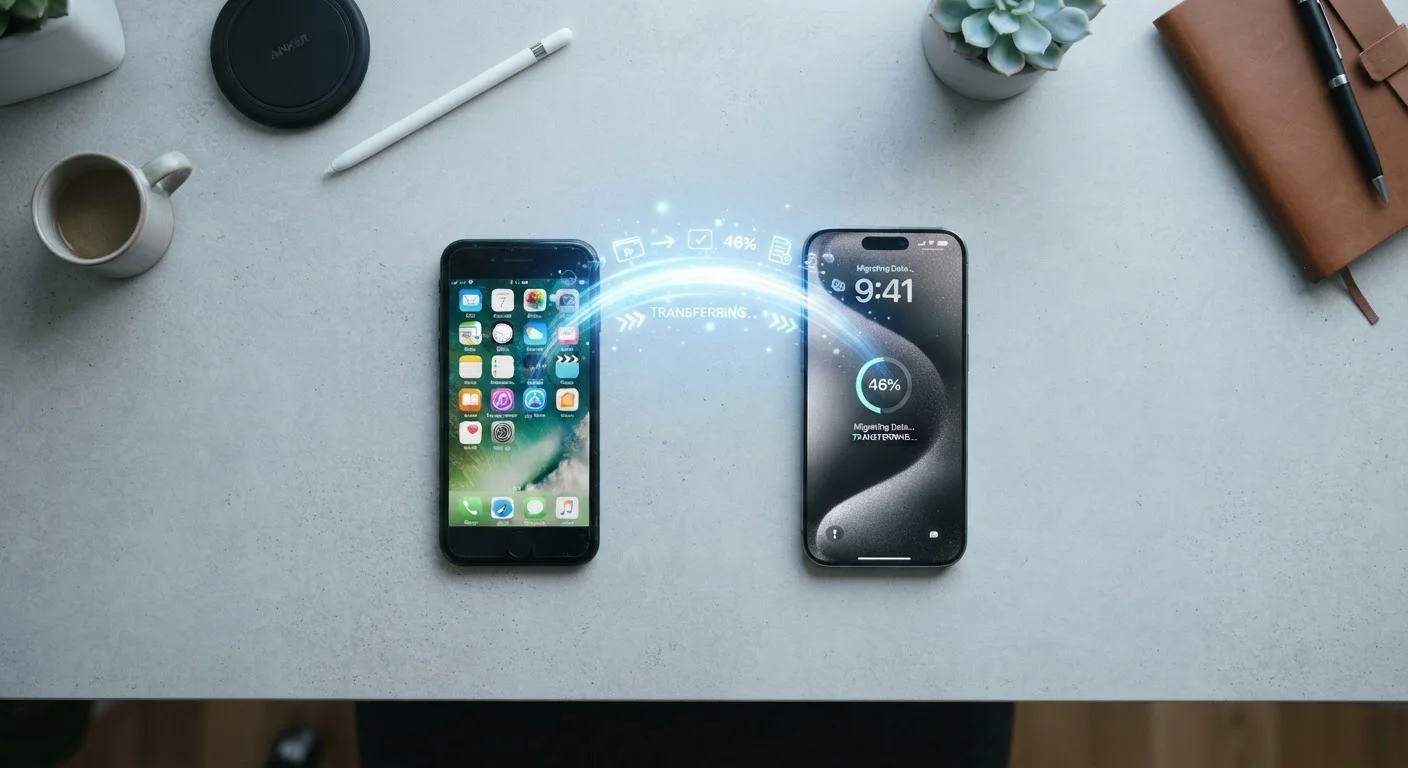
Photo credit: AdvisorHQ.net | Informative Website
In this article
Move contacts, photos, apps, and settings to a new phone without the usual headaches. Works for both Android and iPhone users.
Key Takeaways
- Back up your old phone completely before starting the transfer process.
- Both Android and iPhone offer built-in migration tools that handle most of the work automatically.
- App purchases and subscriptions usually transfer, but some apps require you to log back in manually.
- Two-factor authentication apps need special attention - migrate them before wiping your old device.
- Always verify your data arrived intact on the new phone before signing out of the old one.
Before You Start: What You'll Need
A smooth phone transfer begins well before you power on the new device. Taking 10 minutes to prepare saves hours of hunting for missing data later. Here's what to gather and check upfront.
What you will need
iCloud or Google One (cloud backup)
Backs up contacts, photos, app data, and settings wirelessly before you begin the transfer.
USB cable or manufacturer transfer cable
Some Android migration tools (like Samsung Smart Switch) use a wired connection for faster, more reliable transfers.
Authenticator app with export feature
Migrates two-factor authentication codes to your new phone so you aren't locked out of accounts.
One thing many people overlook: authentication apps like Google Authenticator or Authy. These store two-factor login codes tied to your accounts. If you wipe your old phone without migrating them first, you can get locked out of email, banking, and other services. Most authenticator apps have a built-in export or transfer function - use it before anything else.
It's also worth reviewing your phone's existing settings now, so you know which customizations to recreate on the new device.
Step-by-Step: Transferring Your Phone
Follow these steps in order. Skipping ahead - especially on the backup step - is the most common reason people lose data during a phone switch.
Back Up Your Old Phone
iPhone: Go to Settings → [Your Name] → iCloud → iCloud Backup and tap Back Up Now. Wait for it to finish - don't close Settings or lock the screen mid-backup.
Android: Go to Settings → Google → Backup and tap Back up now. If your manufacturer offers its own backup tool (Samsung, for example, uses Smart Switch), run that as well for a more complete backup.
Transfer Your Authenticator App
Open your authenticator app on the old phone and look for an Export or Transfer accounts option in its settings menu. Follow the in-app prompts to move your codes to the new device. Complete this step while you still have access to your old phone.
Start the Setup Process on Your New Phone
iPhone to iPhone: Turn on the new iPhone and hold it near your old one when prompted. Follow the Quick Start on-screen instructions. You'll have the option to restore from your iCloud backup.
Android to Android: During initial setup, select Copy apps and data from your old phone. You can do this wirelessly or via cable using your Google account or your manufacturer's transfer tool.
Switching platforms (iPhone to Android or vice versa): Use the dedicated migration apps - Move to iOS (for Android users switching to iPhone) or Google's built-in setup wizard (for iPhone users moving to Android). These tools handle contacts, photos, and some app data.
Sign Back Into Your Apps
Most apps reinstall automatically but will ask you to log in again for security reasons. Prioritize the apps you use daily: email, banking, social media, and work tools. Have your passwords ready - this is where a password manager pays off.
Verify Everything Transferred
Spend 10-15 minutes checking your contacts, photo gallery, messages, and key app accounts. Confirm that calendar events, notes, and saved Wi-Fi networks are present. If anything is missing, your old phone backup is still available to restore from or reference.
Switching Platforms? Expect Some Gaps
Moving between iOS and Android means some data - like iMessage history or certain app-specific data - may not carry over cleanly. This is normal and not a sign the transfer failed. Paid apps you purchased on one platform typically need to be repurchased on the other, since app stores are separate ecosystems.
After the Transfer: What to Check and Do Next
Once the migration completes, don't immediately wipe your old phone. Give yourself a day or two to spot anything missing. Work through this short checklist on your new device:
- Contacts: Open your contacts app and scroll through a few entries to confirm names, numbers, and photos transferred correctly.
- Photos and videos: Check your gallery, especially older albums. If you use cloud backup, confirm the sync is complete before assuming everything arrived.
- Apps: Most apps reinstall automatically, but you'll need to log back into many of them. Start with the ones you use daily.
- Text messages: iMessage history transfers to a new iPhone through iCloud backup. Android-to-Android transfers vary by manufacturer tool used.
- Passwords: If you use a built-in password manager (iCloud Keychain or Google Password Manager), these typically sync automatically once you sign in.
Don't Wipe Your Old Phone Too Soon
Keep your old phone active and signed in for at least 24-48 hours after the transfer. This gives you time to notice anything missing. A factory reset is permanent - once done, data that wasn't backed up cannot be recovered.
Once you're confident everything is in order, you can prepare your old device for resale or recycling. See our step-by-step guide to wiping your old phone safely before it leaves your hands.
It's also a good moment to strengthen your security habits on the new device. Our guide to smartphone security habits covers lock screen, app permissions, and more - all relevant after a fresh setup.

Author
Tech & Gadgets Editorial Team
Tech & Gadgets Editorial Team is the collective byline for our editorial team and contributor network. Articles published under this byline or an editorial pen name are researched, written, and reviewed according to our editorial standards for clarity, consistency, and independence before publication.
View all articles →